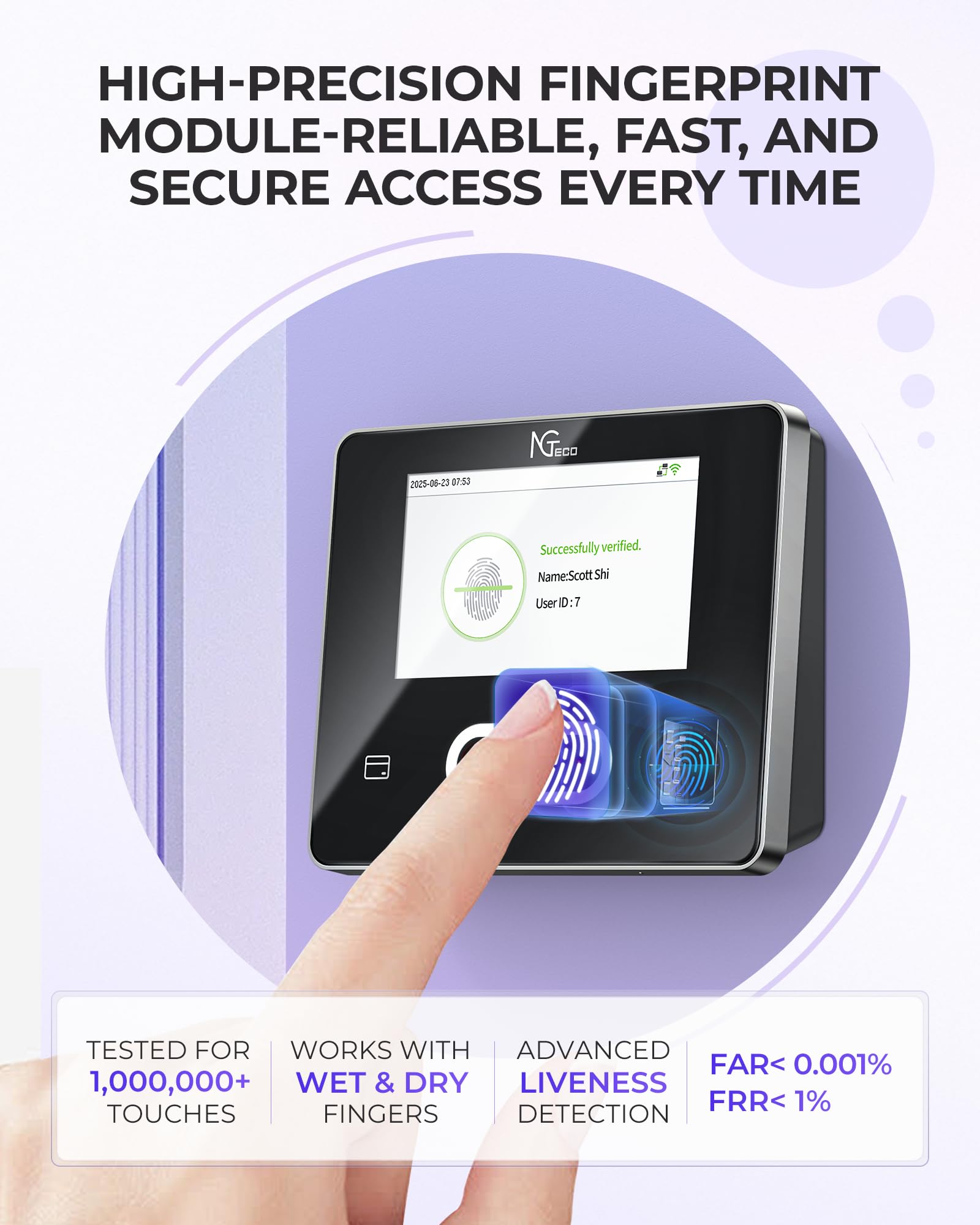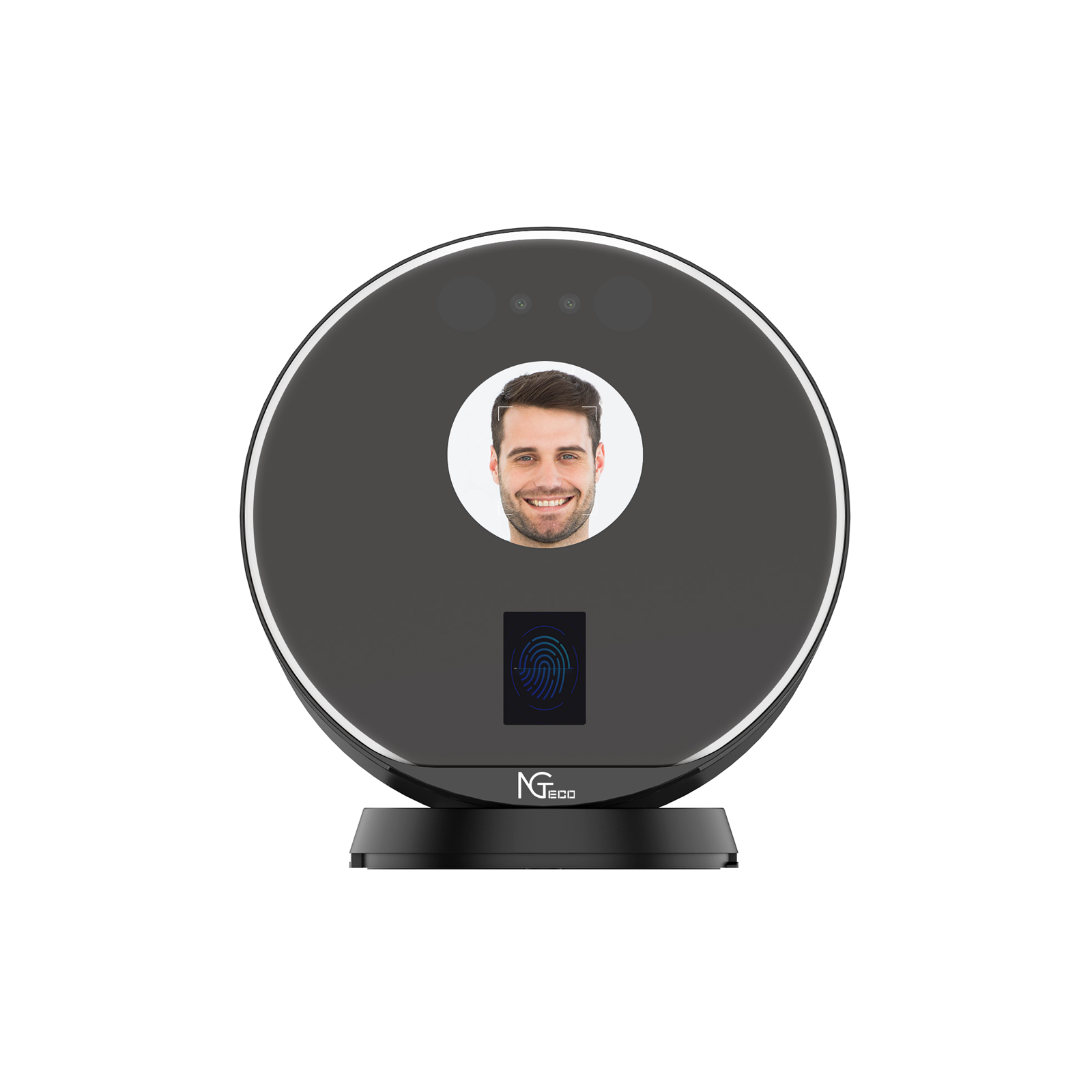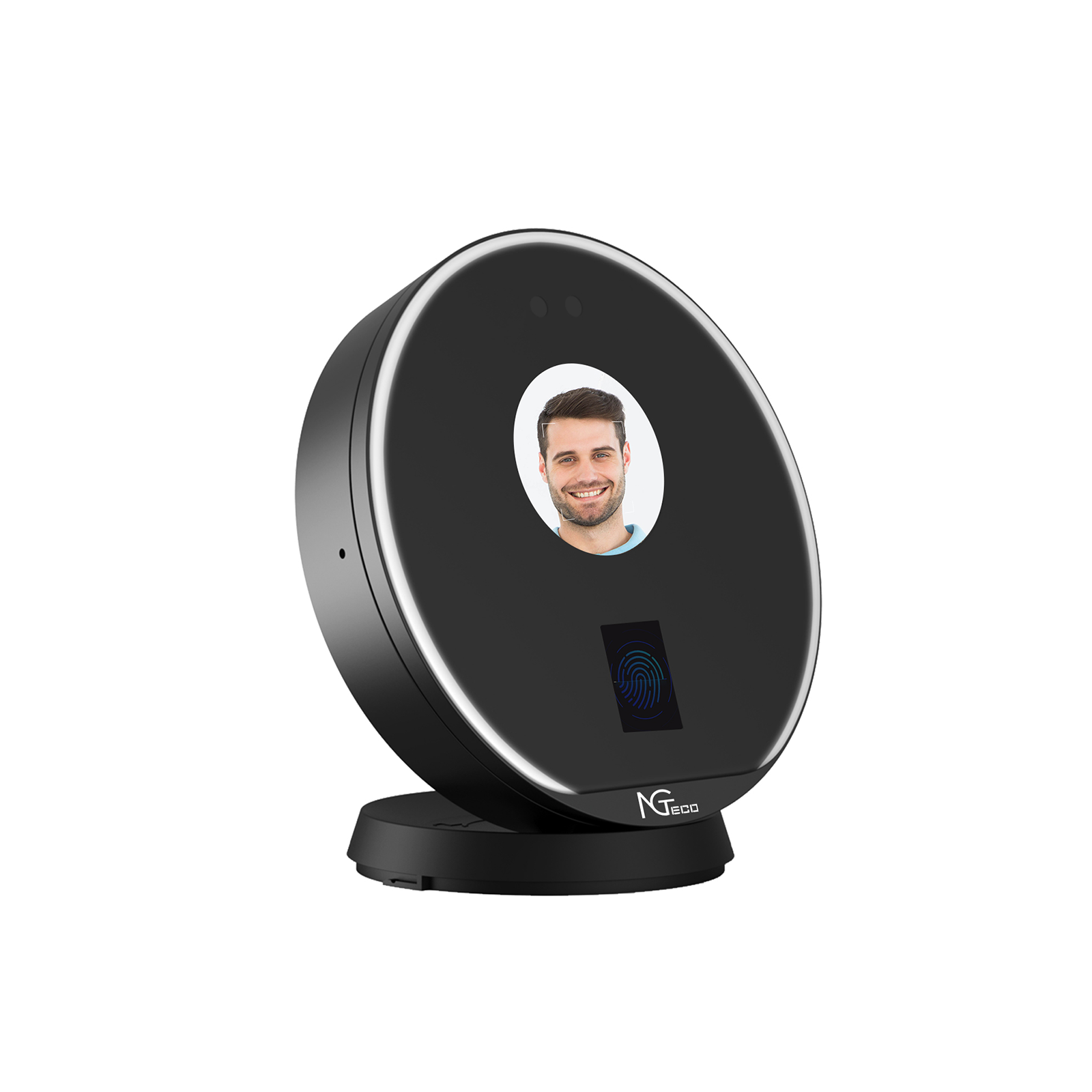


Cloud Time Clock TC5
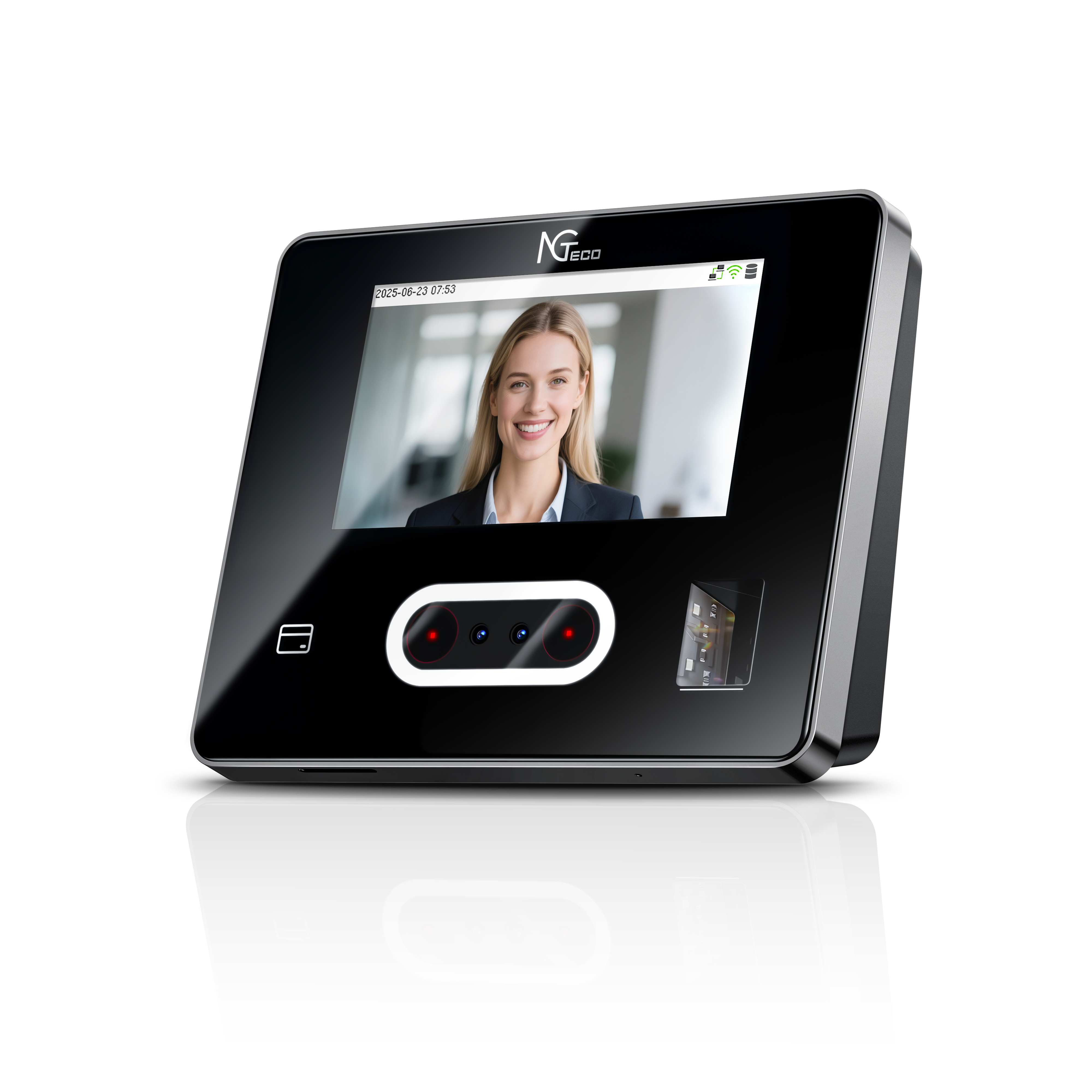
Stylish mid-range cloud time clock for front desks and modern small businesses.
-
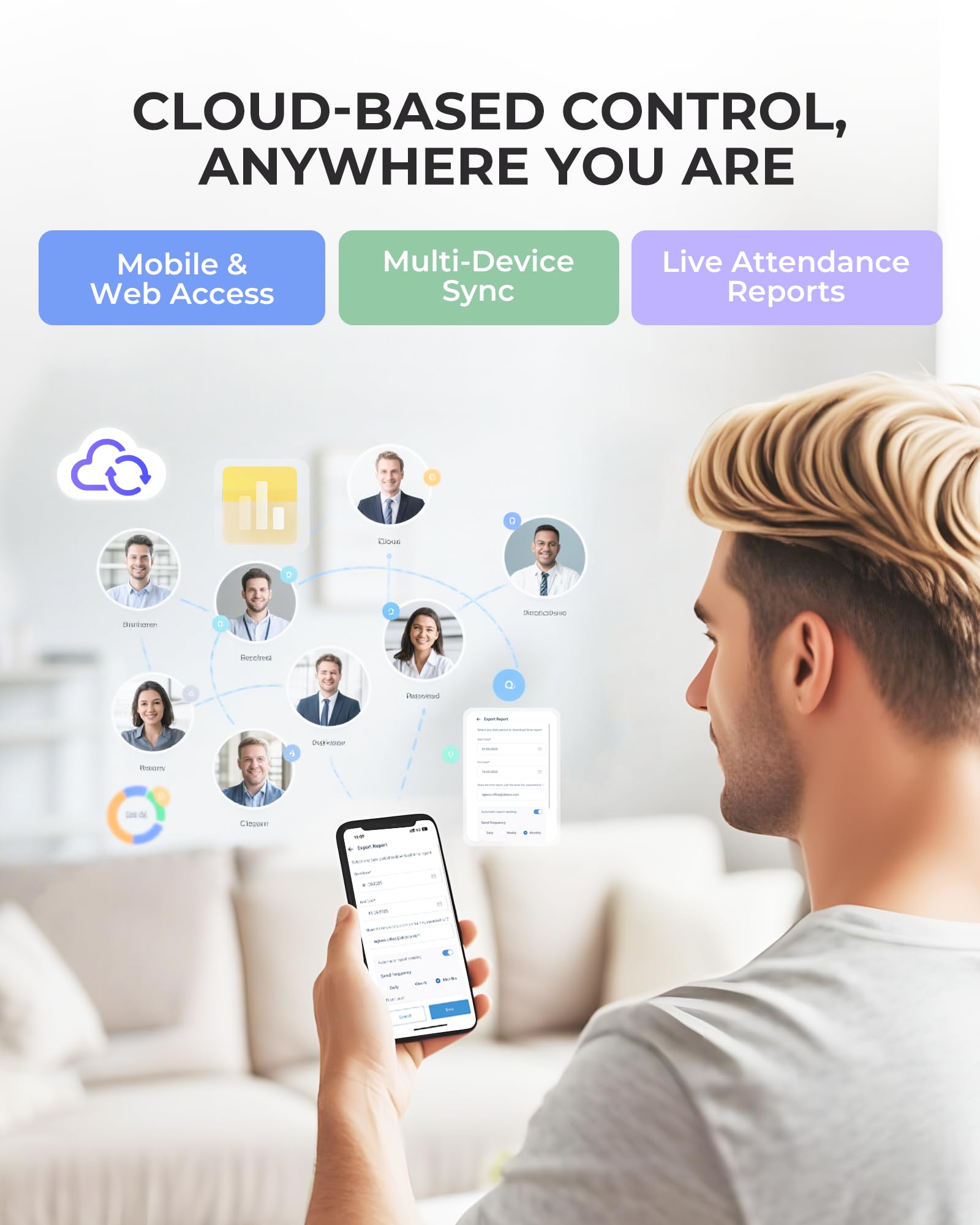
Cloud-Based Remote Control: Manage attendance remotely from your mobile or PC. Real-time data syncs across multiple devices, ensuring you're always up-to-date.
-
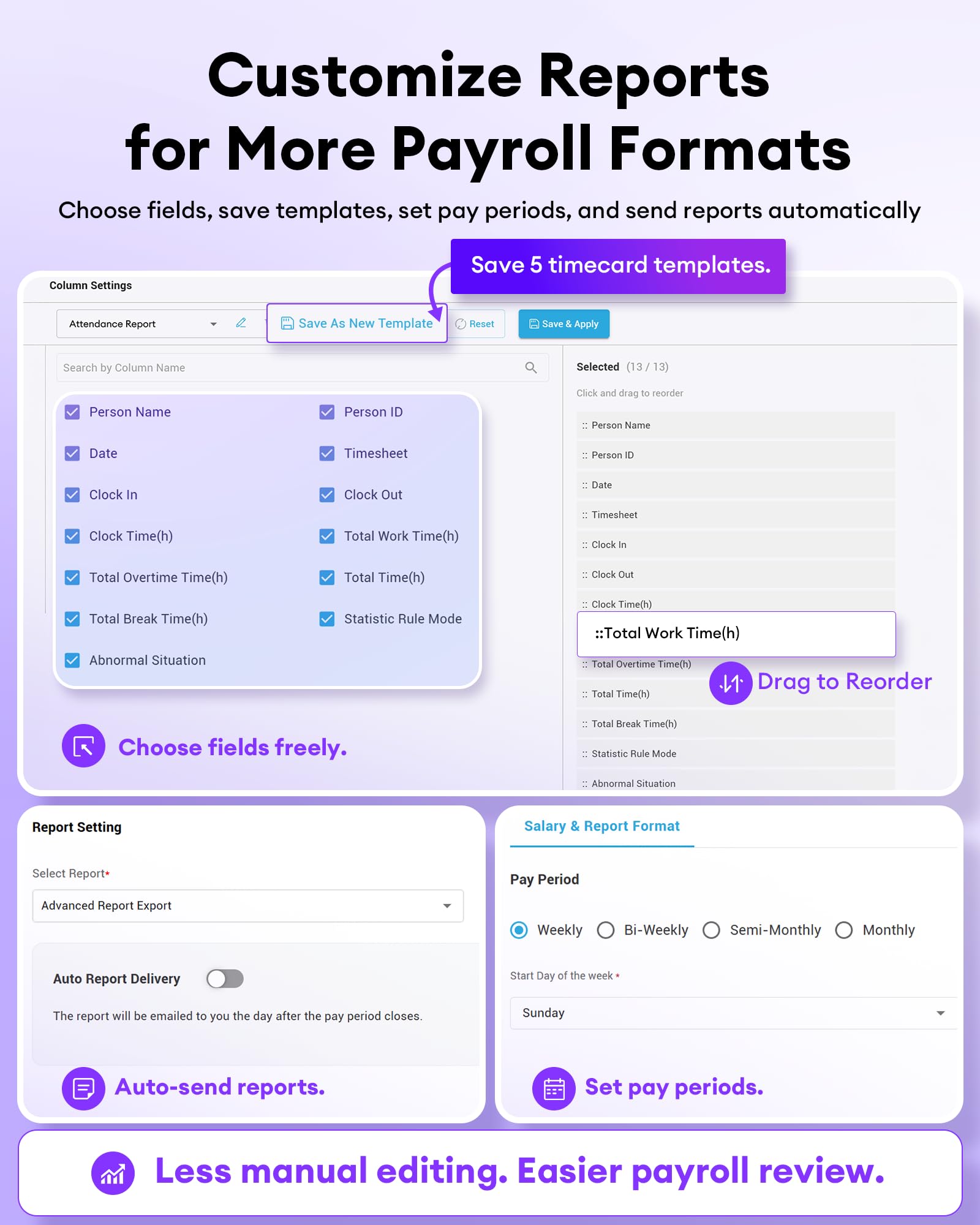
Advanced Customization Rules: Easily set fixed, rotating, or flexible shifts, manage part-time staff, and customize break times, meal periods, and night shifts to meet your business needs.
-
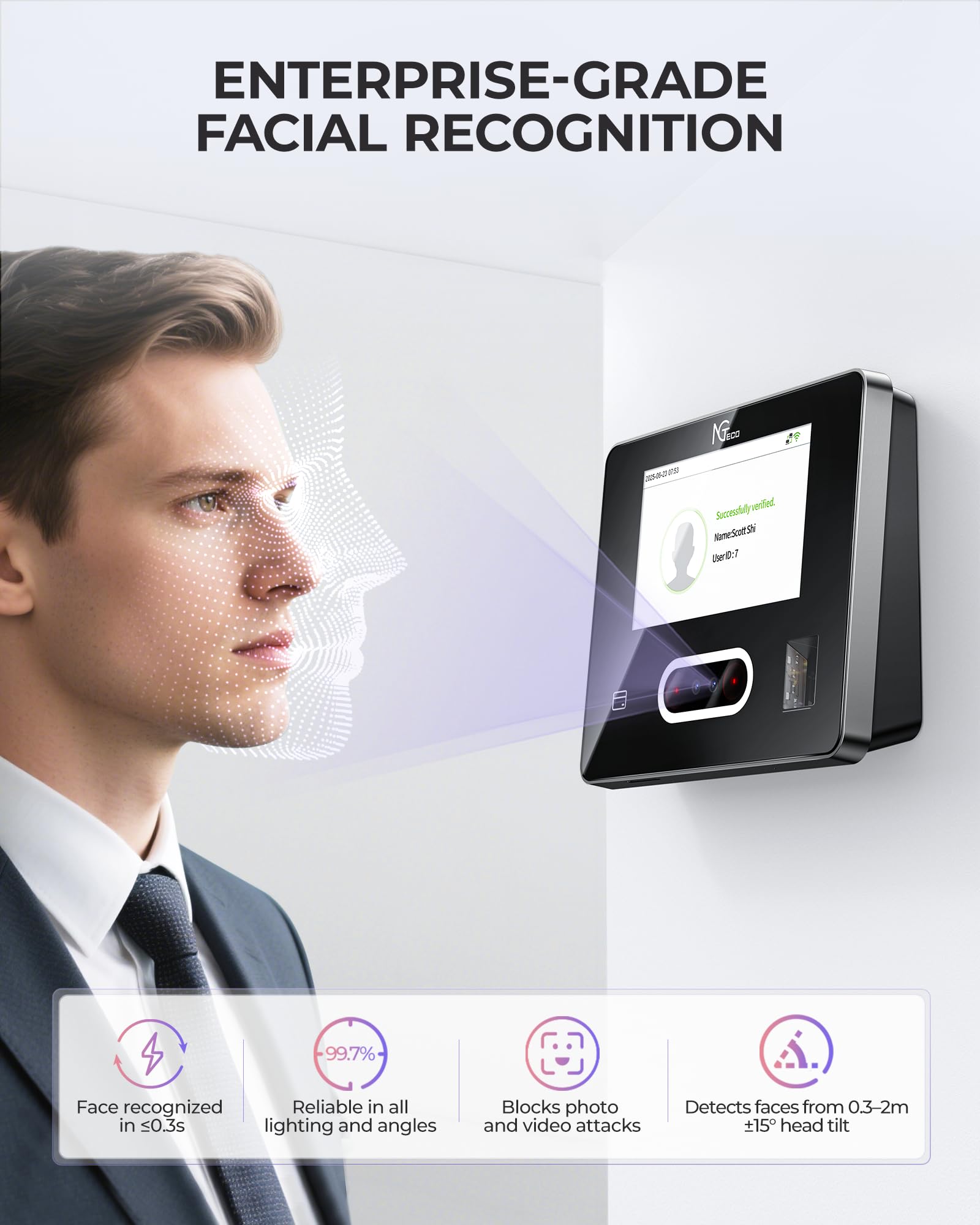
Lightning-Fast Facial Recognition: Experience face detection in under 0.3 seconds with anti-spoofing technology. Works reliably across various lighting conditions and angles (0.3-2m range, ±15° tilt).
-
Free Core Features with Optional Premium Tools
Enjoy free lifetime access to core features such as automatic hour calculation. For more advanced attendance management, a TimeEntrix subscription unlocks GPS-restricted punch-in, real-time reports, smart reminders, and unlimited employees. -
Need Personalized Recommendations?
Click the chat icon in the bottom right corner to contact our support team for recommendations and assistance.







Usage Scenario



Log in to the web or app interface, confirm the site name the device is bound to. Then go to [Organization Management] > [Site], click [Edit] on the right, and update the site's timezone and country settings.
A short delay is normal and may result from factors such as unstable network connections or temporary signal interference.
The system uses the day change time to determine which day the working hours belong to.If check-in occurs before the day change time, the work hours are recorded for the current day.If it occurs after, the hours are assigned to the following day.
Ensure your phone’s Bluetooth is enabled and the Wi-Fi signal is set to 2.4GHz.
Then open the NGTeco Office App, connect to the device via Bluetooth, and configure Wi-Fi settings.
Supported models: NG-TC1, NG-TC4, NG-TC5、NG-TC7.
On Web: During the final step of the Quick Setup, select the employees to sync, click [Sync Person] on the right, and choose the device.Alternatively, go to [Attendance] > [Shift Schedule], then click [Sync Person] and select the target device.
On App:In the final step of Quick Setup, tap [Devices that person can clock in] and choose the device.Or go to [Attendance] > [Shift Schedule], tap the second icon in the top-right corner, and select the device.
Go to [Devices that person can clock in] and select multiple devices for that employee. This allows attendance to be recorded on all selected devices.

Recently Viewed Products