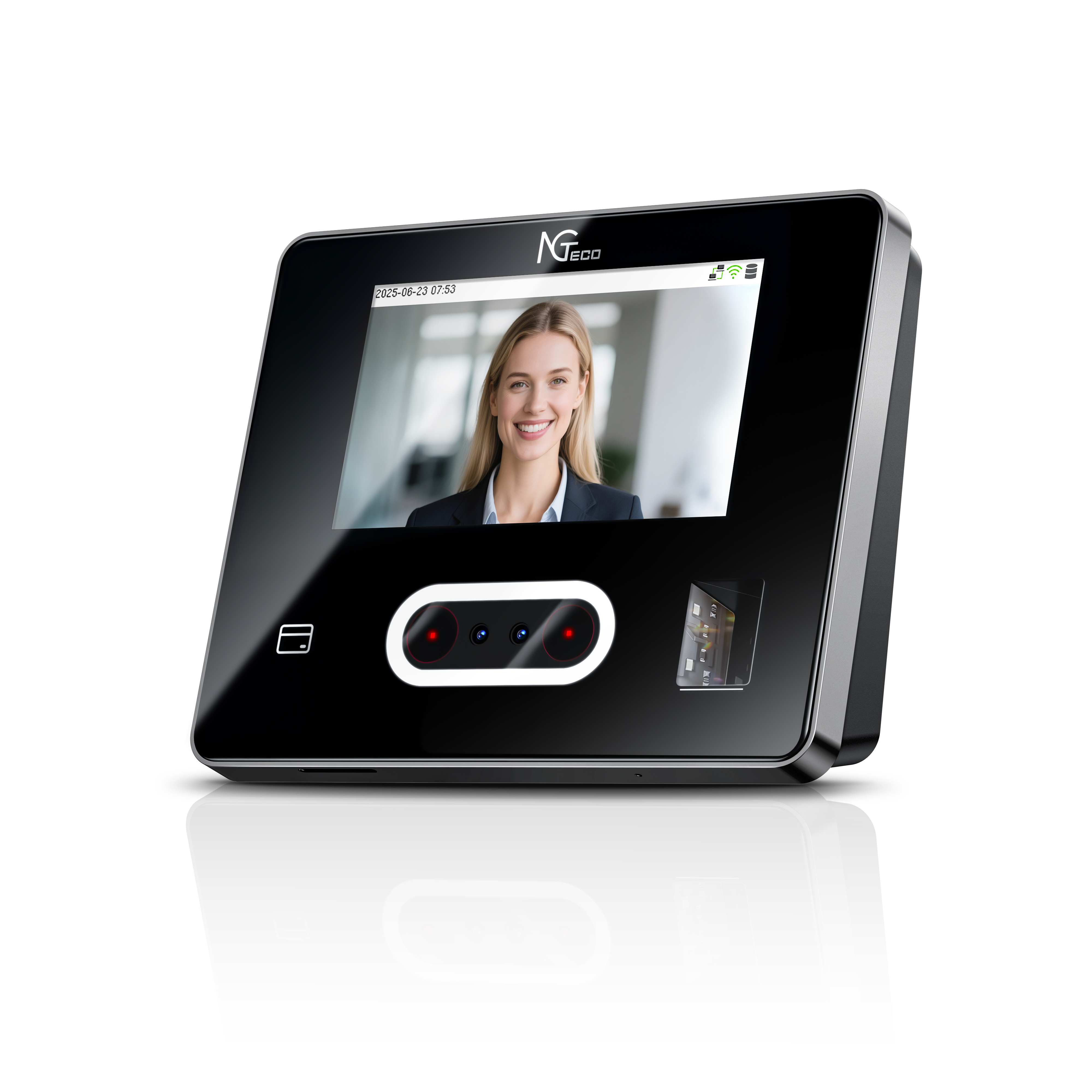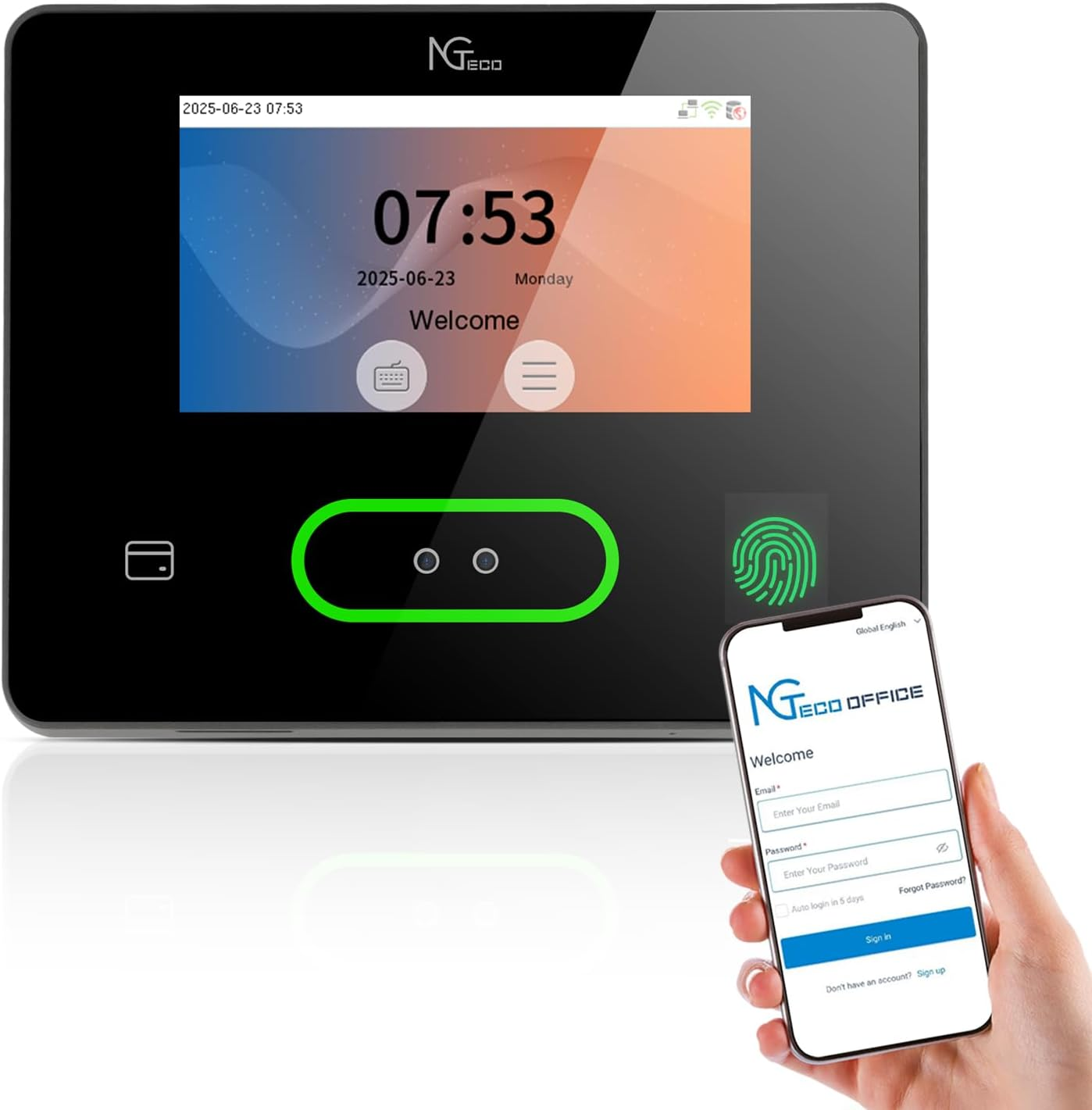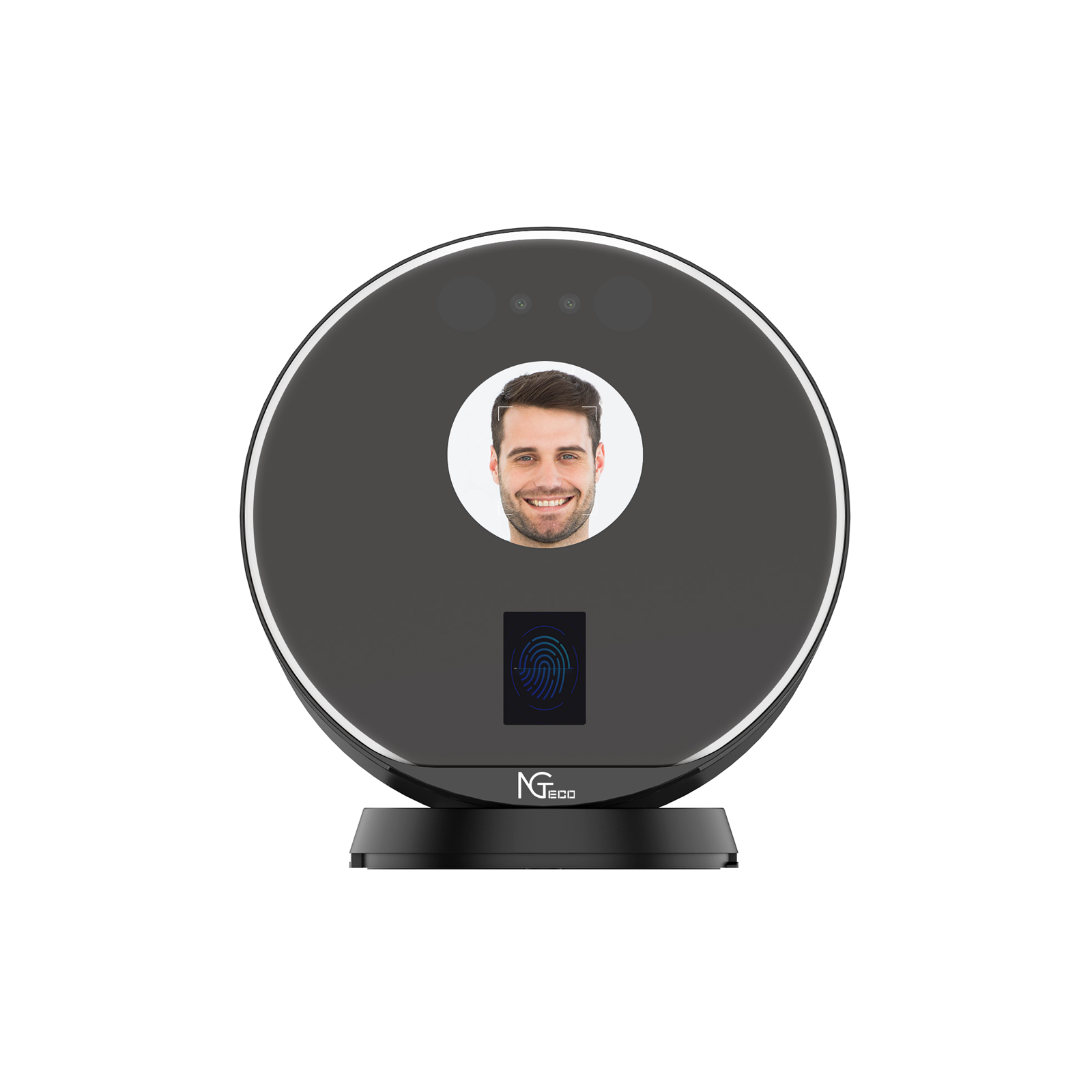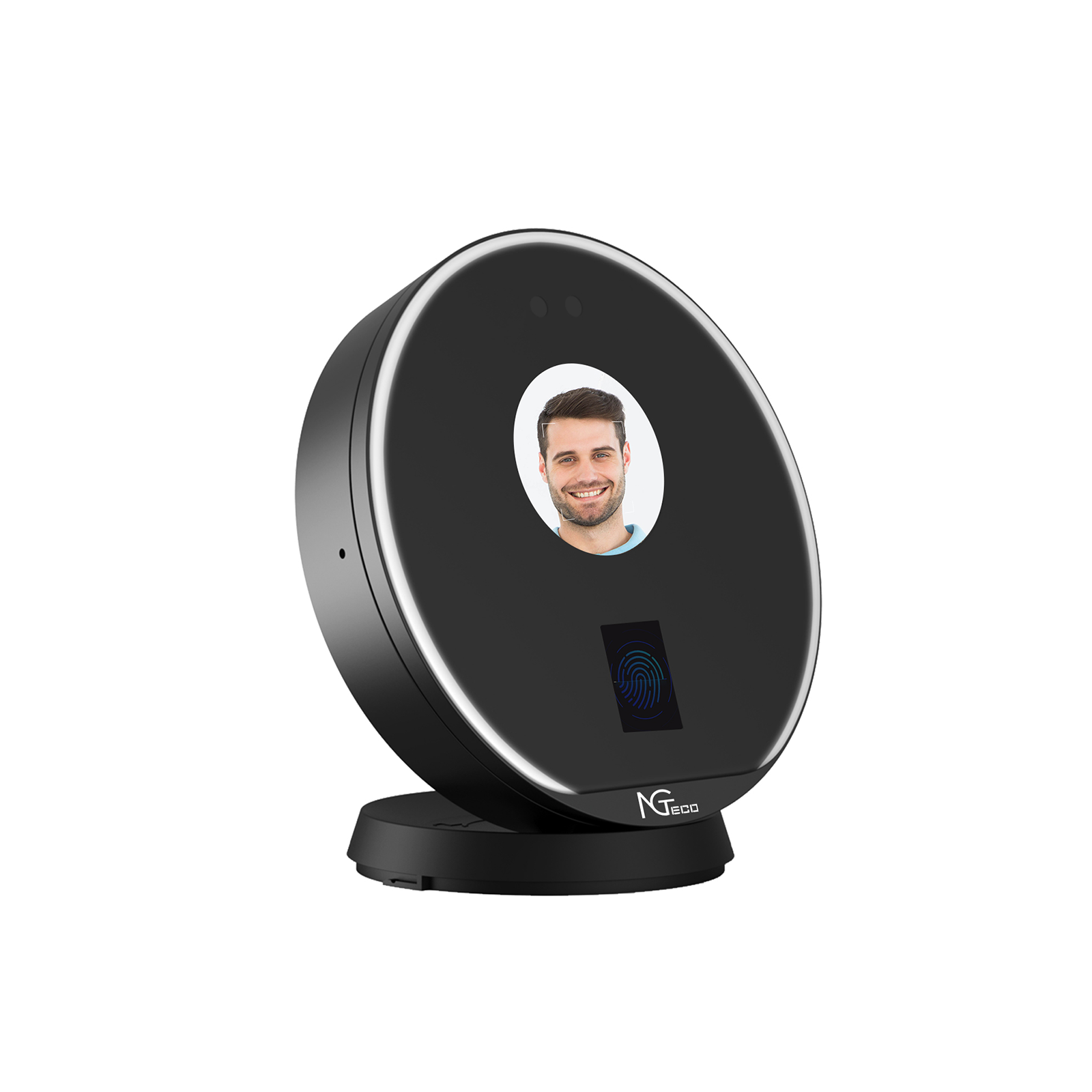


Cloud Time Clock TC1
Biometric time clock with the most punch-in options, ideal for diverse workforces.
-
Flexible Shift Scheduling for Different Business Needs
Supports a range of scheduling options for different business needs, making attendance management easier for part-time staff and multi-department teams. -
Multi-Language Support for Global Teams
NGTeco software is available in English, Italian, Spanish, Latin American Spanish, German, French, and Japanese, making it easier to manage employee attendance across global teams. -
Large Capacity with Offline Sync
Manage up to 200 users and 30,000 logs. The TC1 continues recording punches even when the network is down and syncs data once the connection is restored. -
Free Core Features with Optional Premium Tools
Enjoy free lifetime access to core features such as automatic hour calculation. For more advanced attendance management, a TimeEntrix subscription unlocks GPS-restricted punch-in, real-time reports, smart reminders, and unlimited employees. -
Need Personalized Recommendations?
Click the chat icon in the bottom right corner to contact our support team for recommendations and assistance.







If you have any questions, you are always welcome to contact us. We'll get back to you as soon as possible, within 24 hours on weekdays.
-
Shipping Information
Use this text to answer questions in as much detail as possible for your customers.
-
Customer Support
Use this text to answer questions in as much detail as possible for your customers.
-
FAQ’s
Use this text to answer questions in as much detail as possible for your customers.
-
Contact Us
Use this text to answer questions in as much detail as possible for your customers.
Usage Scenario



- Description
- Video
- Specifications
- Compare
- Reviews
- FAQs





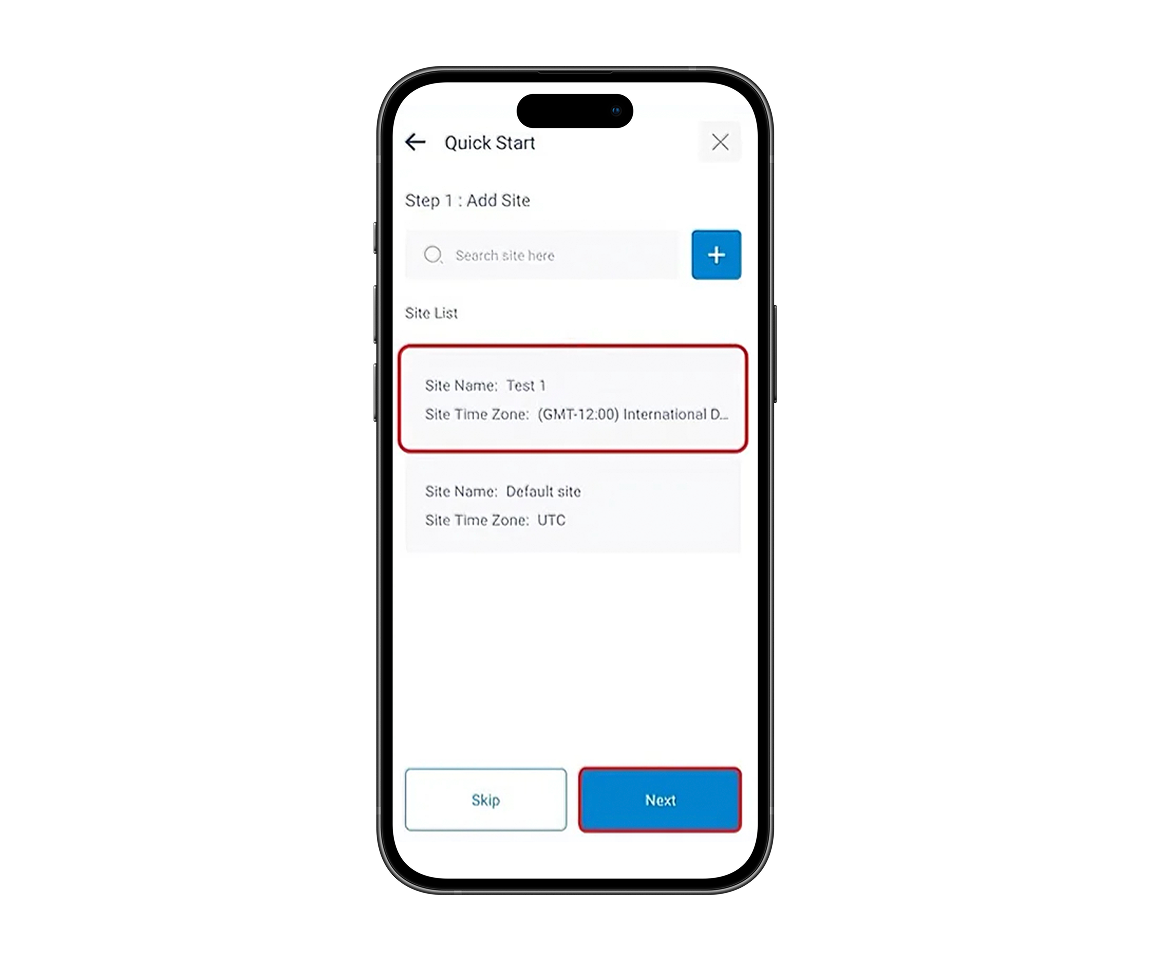
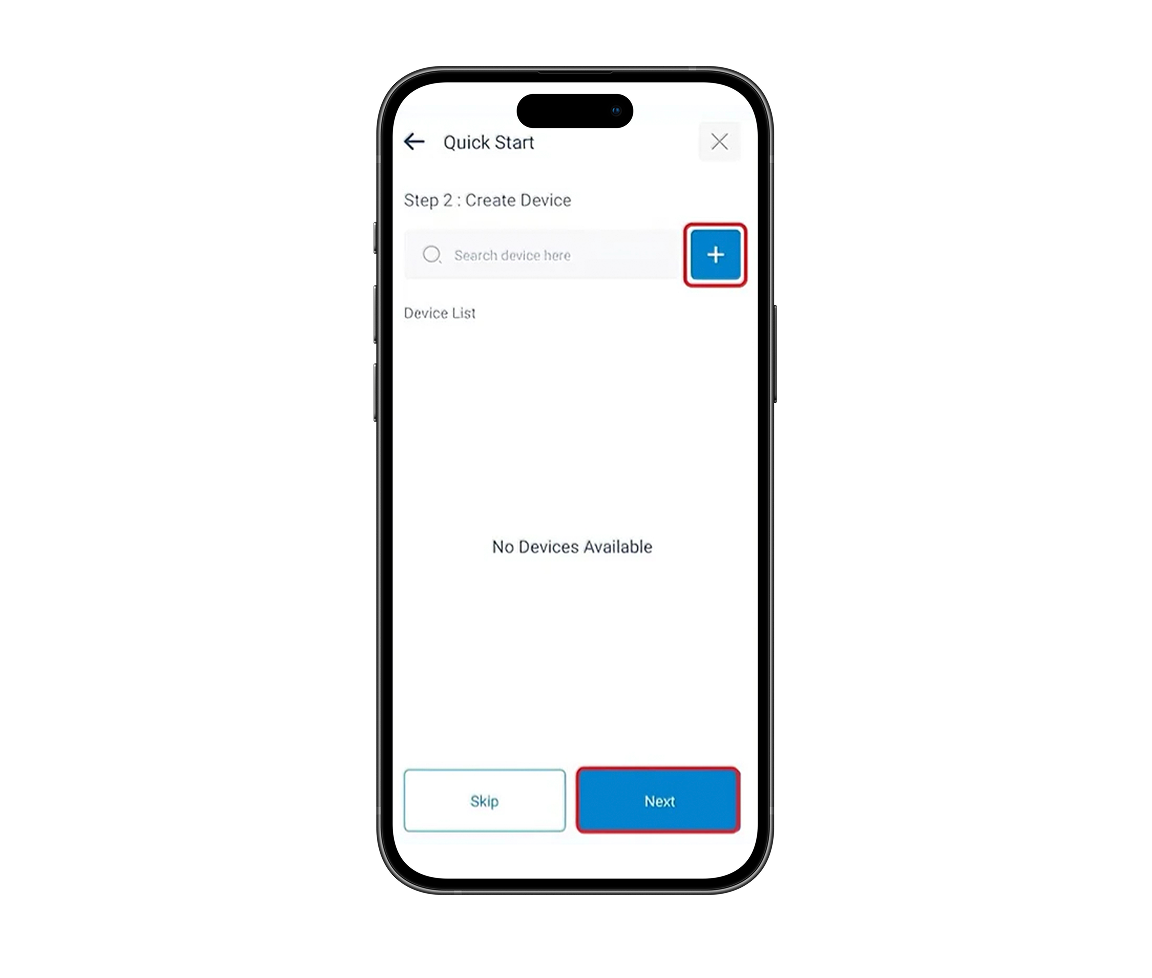
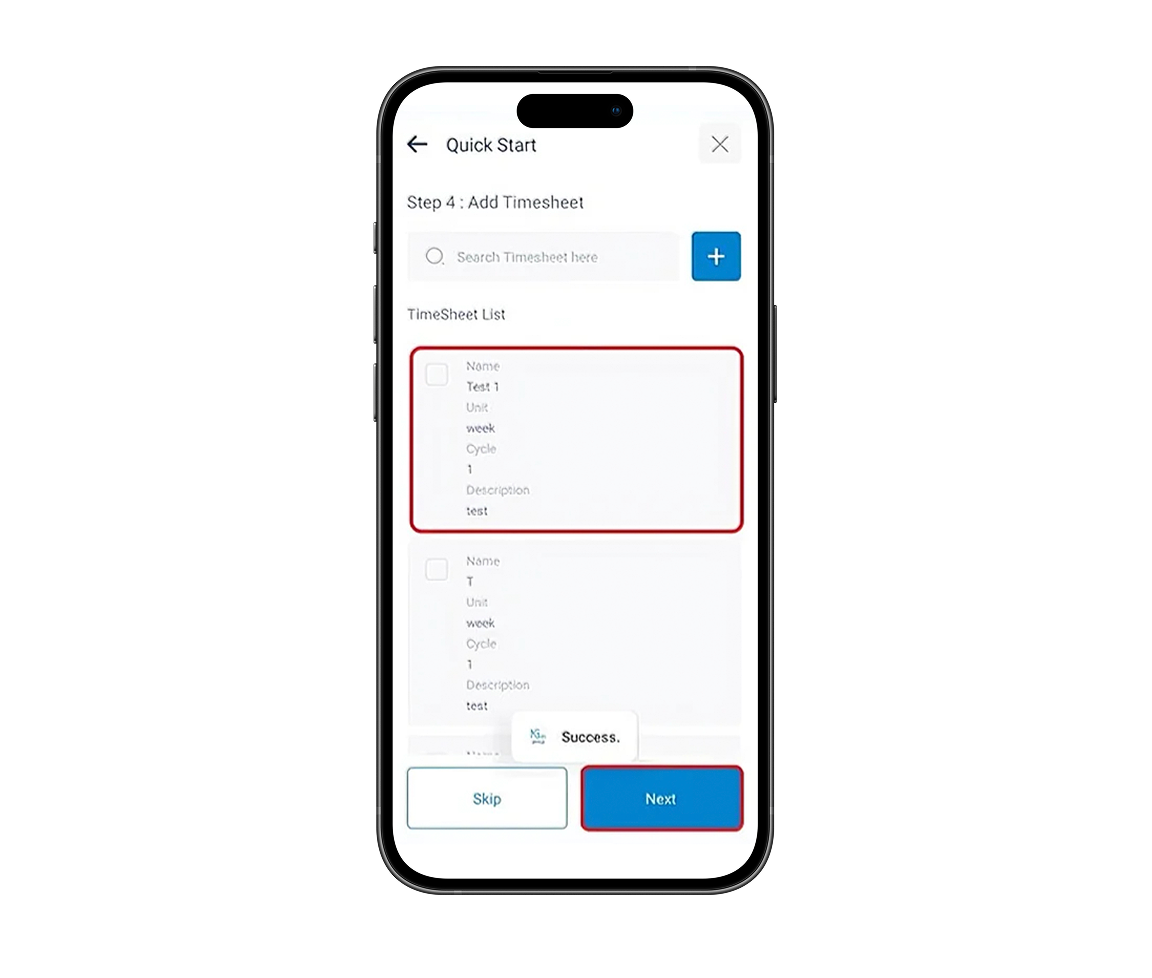
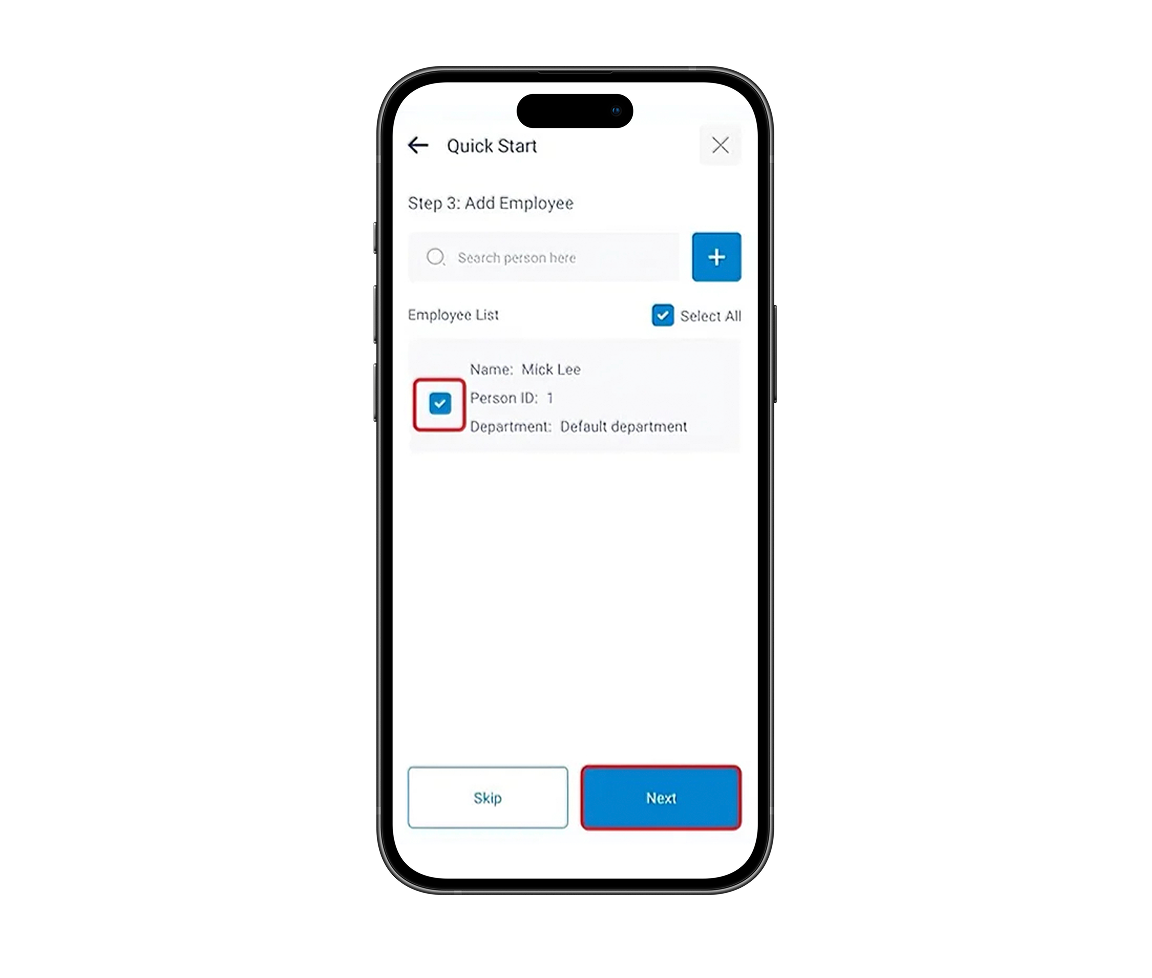
Log in to the web or app interface, confirm the site name the device is bound to. Then go to [Organization Management] > [Site], click [Edit] on the right, and update the site's timezone and country settings.
A short delay is normal and may result from factors such as unstable network connections or temporary signal interference.
The system uses the day change time to determine which day the working hours belong to.If check-in occurs before the day change time, the work hours are recorded for the current day.If it occurs after, the hours are assigned to the following day.
Ensure your phone’s Bluetooth is enabled and the Wi-Fi signal is set to 2.4GHz.
Then open the NGTeco Office App, connect to the device via Bluetooth, and configure Wi-Fi settings.
Supported models: NG-TC1, NG-TC4, NG-TC5、NG-TC7.
On Web: During the final step of the Quick Setup, select the employees to sync, click [Sync Person] on the right, and choose the device.Alternatively, go to [Attendance] > [Shift Schedule], then click [Sync Person] and select the target device.
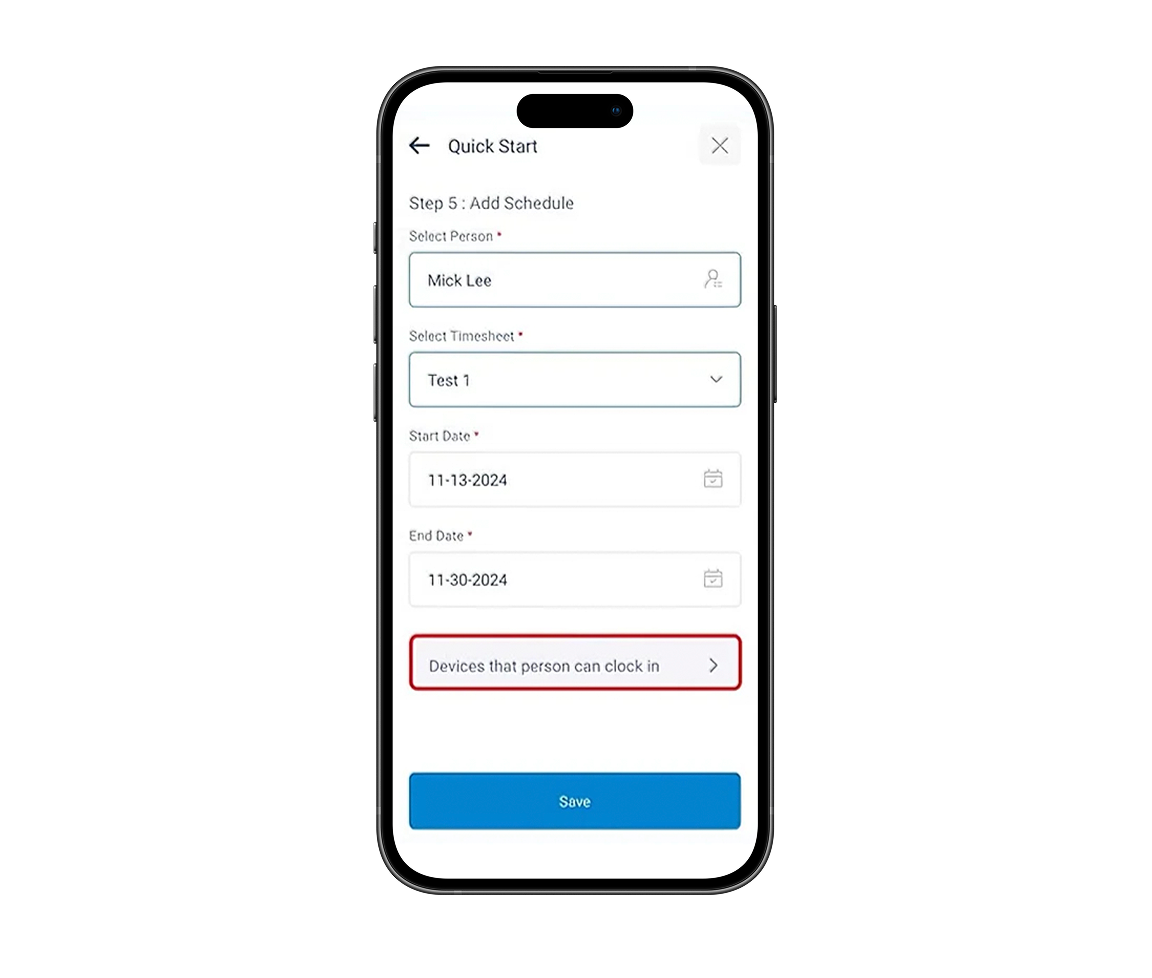
On App:In the final step of Quick Setup, tap [Devices that person can clock in] and choose the device.Or go to [Attendance] > [Shift Schedule], tap the second icon in the top-right corner, and select the device.
Go to [Devices that person can clock in] and select multiple devices for that employee. This allows attendance to be recorded on all selected devices.

Recently Viewed Products