
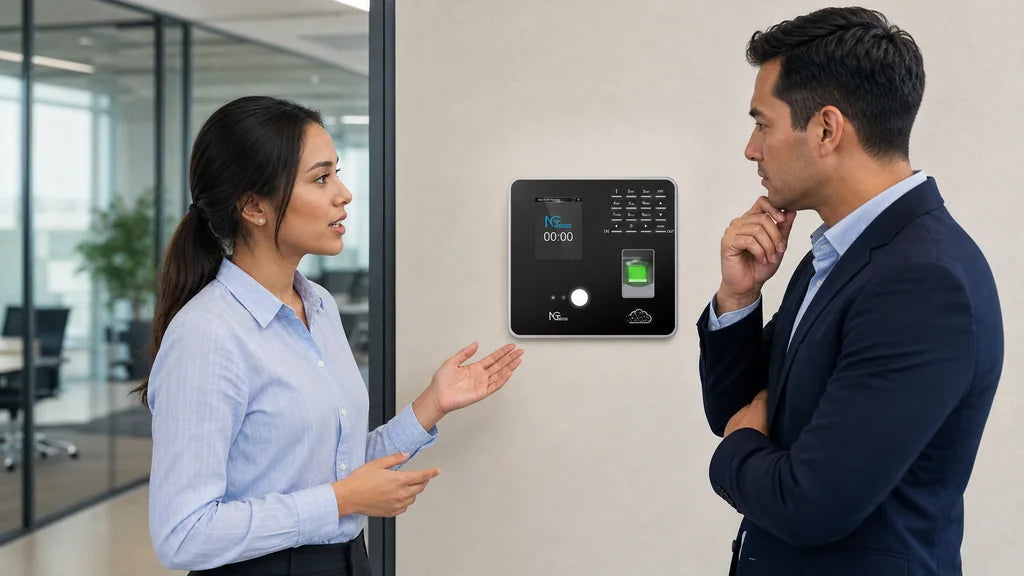
Biometric enrollment is the setup process that creates a fingerprint or facial template so a time clock can verify an employee during a later punch. A reliable biometric attendance time clock rollout starts with written notice and consent, then uses a correct employee profile, careful capture, immediate testing, and a documented fallback. Privacy requirements vary by location, so have the business’s process reviewed for its workforce and jurisdiction.
- Complete the business’s approved notice and consent process first.
- Match each template to the right employee profile.
- Test the normal punch flow before the employee’s first shift.
- Keep an approved alternate punch method ready.
Obtain Informed Consent Before Capturing Biometric Data
Get the required notice and written release before collecting a fingerprint or facial template. The process protects employees from surprise collection and gives the business a consistent record of what happened before enrollment.
The notice should clearly state what biometric information the business plans to collect, why it is used for timekeeping, how long it is retained, and who can answer questions. In Illinois, for example, the Biometric Information Privacy Act requirements address written notice, the purpose and retention period, and a written release before collection. Other states and local rules may differ, so this article is operational information, not legal advice.
Record that the employee completed the approved consent step in the onboarding record. Keep signed forms and any biometric-related records in the access-controlled location selected by the business, rather than an unsecured shared folder.
If an employee cannot or does not use biometric verification, direct that person to the documented alternate punch process. Do not create a shared profile or a casual exception just to finish onboarding quickly.
Create or Confirm the Correct Employee Profile
Confirm the employee identity before capture, because a good template on the wrong profile creates an attendance problem that can be hard to spot later. Compare the displayed name or employee identifier with the approved roster before selecting an enrollment option.
Check these items before the first fingerprint or face capture:
- The employee’s name and unique identifier match the roster.
- The assigned location, department, and schedule workflow are correct.
- The employee is assigned only to the terminal or terminals the business intends that person to use.
- No former employee, placeholder, or shared profile is being reused.
This short review also helps when payroll staff later investigate a punch exception. A profile should represent one employee and one approved attendance workflow.

Prepare the Employee and Capture Area
Prepare the person and the capture area before enrollment, since conditions during setup often affect later verification. Follow the terminal’s on-screen prompts and product instructions rather than assuming every device uses the same position, distance, or sample count.
For fingerprint enrollment, ask the employee to clean and dry the selected finger if needed, and check that the sensor surface is clean. Temporary moisture, dust, lotion, or a poorly placed finger can prevent the device from collecting a useful sample.
For facial enrollment, use even lighting and make sure the employee has a clear, unobstructed view of the device. Sunglasses, a hat that blocks the face, or strong backlighting can interfere with capture. Remove temporary obstructions where practical, then let the employee face the terminal as prompted.
These biometric time clock enrollment tips are simple, but they reduce avoidable repeat captures. They also set employees up to use the same basic position during their normal clock-in and clock-out routine.
Capture Multiple High-Quality Fingerprint Samples
Capture every fingerprint sample the terminal requests, and redo a sample that the device rejects or marks as poor quality. A rushed first capture can lead to repeated failed punches even when the employee is using the right finger.
When deciding how to enroll employees in a fingerprint time clock, have the employee place the same finger in the normal clock-in position each time and wait for the device prompt before lifting it. If the terminal allows more than one enrolled finger, follow its documented process for a backup finger rather than improvising a record.
Use this practical sequence:
- Confirm the correct employee profile is open.
- Ask the employee to place the selected clean, dry finger as prompted.
- Repeat the capture until the terminal confirms the required samples.
- Re-enroll if the test punch is inconsistent, after checking finger condition and sensor cleanliness.
Do not treat a completed capture screen as proof that the template will verify reliably. The test step is what confirms whether the employee can actually use the terminal.
Capture a Clear Facial Template
Complete facial enrollment only when the system confirms a successful capture and the employee can verify in the normal punch flow. A facial template is part of the device’s verification setup, not an ordinary employee photo, so managers should use the terminal’s own enrollment steps and avoid unsupported assumptions about the data format it stores.
Ask the employee to face the device at the prompted position in steady lighting. Keep the face clear of avoidable obstructions, then repeat the enrollment if the device does not confirm success or if immediate verification is unreliable.
For teams that need several punch-in options, our Cloud Time Clock TC1 can fit the enrollment workflow. Choose the method or alternate method that fits the business’s approved process, and confirm that the selected mode is enabled for the employee before the first shift.
Test Verification Immediately
Ask the employee to complete a normal test punch right after enrollment. This is the fastest way to catch a poor capture, an incorrect profile assignment, or a device setting issue before a real shift creates a missing attendance record.
Check three results:
| Check | What to Confirm | If It Fails |
|---|---|---|
| Verification | The device recognizes the employee in the normal flow | Recheck capture conditions and re-enroll if appropriate |
| Attribution | The punch belongs to the correct profile | Correct the profile before any production punch |
| Attendance record | The result appears in the intended record | Check device assignment or the approved sync process |
Effective biometric time clocking depends on all three checks. If an issue cannot be resolved immediately, use the approved alternate punch method and document the exception while the enrollment issue is addressed.

Synchronize Enrollment to the Correct Devices
Confirm that the employee can verify on every terminal assigned to that person before calling enrollment complete. A template that works at one entrance does not automatically prove that the employee can use another device or location.
First, identify which clocks the employee needs for the assigned workflow. Then check the product documentation or administrator controls to see whether employee information syncs automatically or requires a selection. On our TC1, the NGTeco Office web and app workflows provide a way to select the devices where a person can clock in, including multiple devices when needed.
Test a punch on each required terminal after synchronization. This avoids a common first-day problem where the employee is enrolled successfully but is not assigned to the clock near the actual work area.
Document Alternate Punch Options
Define an alternate punch option before a biometric problem occurs. A consistent fallback protects accurate timekeeping when enrollment is pending, a sensor is being serviced, or an employee’s template is temporarily unreliable.
The written process should state:
- Which alternate method the employee may use, such as an approved credential or manager-recorded exception.
- Who can approve it and where the approval is recorded.
- How the time entry is reviewed and corrected, if needed.
- When the employee should be re-tested or re-enrolled.
The fallback is part of the attendance process, not a workaround for consent or profile setup. Apply it consistently and keep the exception record separate from any biometric data.
Set Up Enrollment Before the First Punch
Start with the business’s approved privacy and consent process, then create the correct profile, capture a usable template, test it, and verify device assignment. For teams that need several punch-in options, consider our TC1 as part of the rollout plan. Confirm current product documentation and your own legal and workplace requirements before enrollment begins.
Frequently Asked Questions
Q1: Do employees need to sign a consent form before biometric enrollment?
It depends on the laws, agreements, and policies that apply to the workplace, but managers should complete the business’s approved notice and written consent or release process before capturing biometric data. Illinois has specific written notice and release requirements. Ask qualified legal or compliance personnel to confirm the process for each location.
Q2: What information should an employee receive before facial or fingerprint enrollment?
Employees should receive the business’s approved notice explaining what biometric information is collected, its timekeeping purpose, the retention period, and the contact for questions. The exact content may vary by jurisdiction. Give the notice before capture and retain the completion record using the business’s approved security controls.
Q3: What should a manager do if a fingerprint time clock does not recognize a newly enrolled employee?
First check that the correct profile is selected, the finger and sensor are clean and dry, and the employee is using the enrolled finger as prompted. Re-enroll if needed, then run another test punch. Use the approved alternate method while the issue is being resolved instead of recording an informal or shared punch.
Q4: Can an employee use a different clock-in method if biometric verification is unavailable?
Yes, when the business has approved and documented an alternate method. The process should identify the allowed method, the person who can approve it, and where the exception is recorded. A fallback supports accurate attendance when a device, enrollment, or verification problem prevents the normal biometric punch.
Q5: Should an employee be enrolled on every biometric time clock at the workplace?
Enroll or assign the employee to every terminal the person is expected to use, then test each required device. The exact synchronization step depends on the device and software workflow. A successful punch on one clock does not confirm that the employee can verify on another clock or at another approved location.


Share:
How to Set Clock-In Grace Periods for Early and Late Punches Across Shifts
Employee Attendance Management: How to Review Exceptions Without Micromanaging