
Are you still relying on manual timesheets or outdated punch cards to track employee hours? If so, you know the struggle of calculating hours, deciphering handwriting, and worrying about accuracy. It’s time to modernize your workflow.
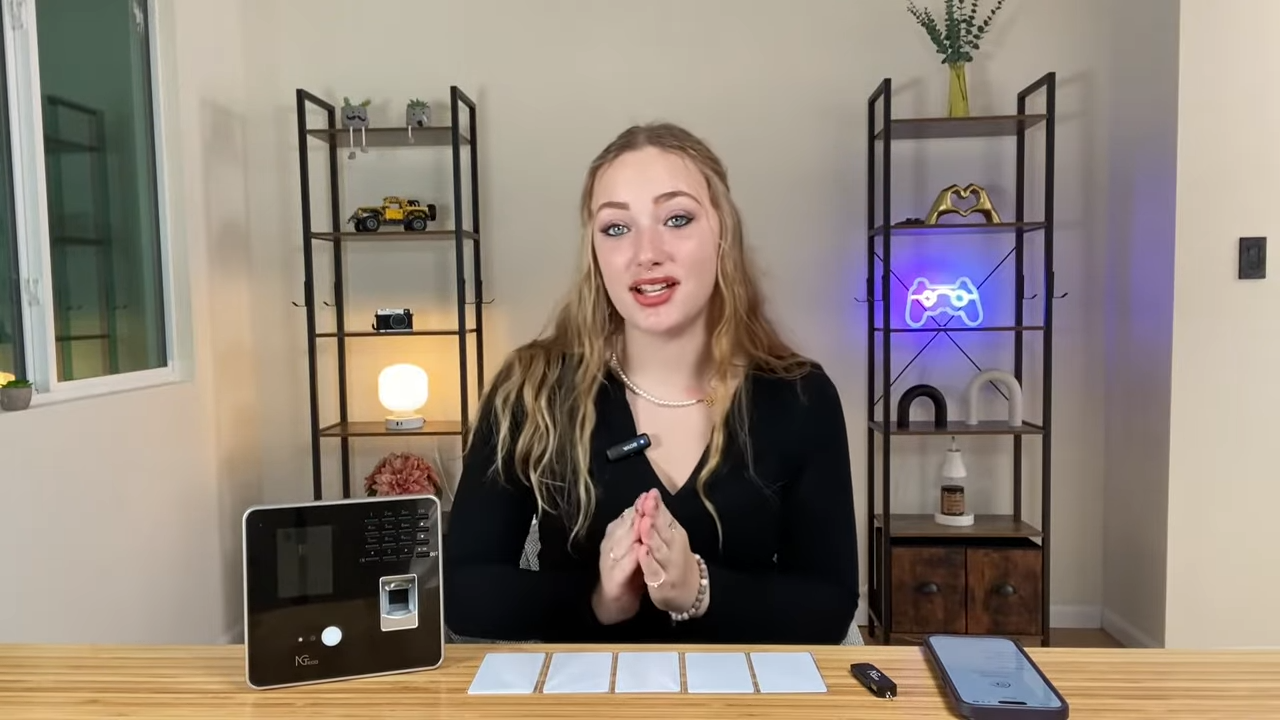
Enter the NGTeco Cloud Time Clock TC1. This device is presented as a comprehensive "3-in-1" solution designed to eliminate manual tracking for good. Based on a detailed hands-on review and demonstration, we are going to walk you through the features, setup, and reasons why this smart device is becoming a necessity for modern businesses.
Triple-Mode Biometrics: Face ID, Fingerprint & PIN
One of the standout features of the NGTeco TC1 is its versatility. As demonstrated in the review, the device isn't limited to just one method of entry. It offers multiple access methods to suit different work environments and employee preferences, making the clock-in and clock-out procedure seamless.
- Touchless Face ID Convenience: The device features an advanced camera system. As shown in the demonstration, the face recognition feature is a default function that activates immediately when a face approaches the camera, allowing for a hygienic, touch-free experience.
- High-Security Fingerprint Access: For environments where biometrics are preferred, the fingerprint scanner provides a quick and secure way to log attendance.
- Backup PIN Options: The system also supports password entry, ensuring that every employee has a reliable way to clock in, regardless of the situation.

Seamless Mobile App Integration
The hardware is impressive, but the integration with the NGTeco mobile app is described as "the best part" of the system. The time clock sends all logged information directly to the mobile app on your phone, giving administrators instant access to data without needing to be physically near the device.
Here is how the app simplifies management:
- Real-Time Monitoring: The app displays a clear list of users and their attendance records, confirming clock-ins instantly.
- Remote Management: You can manage attendance on the go. The demonstration showed how an administrator can clock out via the app, with the recorded time appearing instantly.
- Correction Tools: Mistakes happen. If an employee forgets to clock in or out, the app allows you to "add or edit punches" directly from your phone, ensuring your records are always accurate before payroll processing.

Step-by-Step: Setup in Minutes
Many business owners worry that new technology will be difficult to install. However, the NGTeco TC1 is designed to be "super easy" to set up, easy to use, and easy to read. You don't need a professional IT team to get started.
Based on the unboxing and setup demonstration, here is the simple process:
- Power On: Simply plug the device in using the included power adapter to begin.
- Access the Menu: Navigate the intuitive on-screen menu to the "User Management" section.
- Register Biometrics: Select "Register Face" or "Register Fingerprint." The device guides you through capturing the biometric data, a process that takes just seconds per user.
- Sync the App: Connect the device to the mobile app to enable data transfer and remote management.

Automated Reporting for Easy Payroll
The ultimate goal of the NGTeco TC1 is to streamline administrative tasks. The device allows you to customize settings such as your specific pay period and time data directly on the unit.
By providing organized reports for pay periods and accurately tracking employee hours, the system removes the headache of manual calculations. This efficiency, combined with the lack of monthly subscription fees for generating these reports, makes the TC1 a powerful tool for keeping your business organized and your payroll accurate.

Conclusion
The NGTeco TC1 comes with a strong recommendation for its efficiency, ease of use, and robust feature set. By combining Face ID technology with a user-friendly mobile app, it transforms a mundane daily task into a streamlined, automated process.
As the review concluded, this device is a "necessity" for businesses looking to save time and improve accuracy. Upgrade to the NGTeco TC1 today and experience the smartest way to manage your team's time.
FAQs about NGTeco TC1 Smart Time Clock & App Management
Q1: Can I manage multiple TC1 devices across different locations using a single account?
Yes, the NGTeco TC1 is designed for scalability. Unlike basic standalone models (such as the MB1/MB2), the TC1 supports cloud connectivity, allowing you to link multiple devices to a single account. This is ideal for businesses with multiple branches or office locations, enabling centralized data management and reporting from one unified interface.
Q2: Is it possible to integrate the TC1 data with my own third-party HR or payroll software via API?
Currently, NGTeco devices do not support open API access or direct software integration with third-party platforms. However, the system is designed to be compatible with most payroll workflows through its export feature. You can easily generate and export detailed attendance reports as Excel files via email, which can then be uploaded into your preferred HR or payroll system for processing.
Q3: How do I handle break times to ensure accurate daily hour calculations?
The TC1 automatically handles complex shift rules, including breaks. Employees can simply clock out when their break begins and clock back in when it ends. The device acts as a real-time standalone calculator, automatically subtracting break durations to provide precise employee-accessible net daily and total worked hours. This ensures your payroll data is accurate without needing manual adjustments for lunch or rest periods.
Q4: I want to view data on my computer. Is there a dedicated PC software for the TC1?
The NGTeco TC1 is mobile-first and does not use traditional desktop software. Instead, it offers a more flexible cloud-based attendance system. While there is no installed PC application, you can easily access your data on a computer by exporting reports from the mobile app to your email. This allows you to open, view, and print your attendance spreadsheets on any PC or laptop instantly.
Q5: Can I change the system language on my NGTeco device?
Language settings on NGTeco devices are typically region-locked based on where the unit was manufactured and sold (e.g., a unit bought in Germany may be locked to German). The device generally does not support manual language switching in the settings menu. If you have specific language requirements, please verify the device version before purchasing or contact customer support for assistance.
Q6: What should I do if I’m having trouble connecting the mobile app to the device?
Connectivity issues are often resolved by checking a few key settings. First, ensure your smartphone's Bluetooth is enabled and you are within range of the device. Second, confirm that the TC1 is powered on and not currently in a menu setting. If connection problems persist, try restarting the app or re-syncing the device. For persistent issues, NGTeco’s customer support team is available to help troubleshoot specific mobile compatibility problems.
Q7: Where is the RFID card reader located on the TC1 unit?
The RFID card reader is integrated seamlessly into the device's design to maintain a compact footprint. It is located near the fingerprint sensor area. To clock in using an ID card, simply tap or hold the card close to the fingerprint scanner, and the device should automatically detect and register the punch.
Q8: How can I download my employee attendance data for payroll?
Downloading data is simple and requires no physical USB connection. Open the NGTeco Time App on your smartphone, navigate to the Report section, and select your desired pay period or date range. Click the Share button to email the report to yourself. You will receive a formatted Excel file containing all employee hours, ready for payroll processing.


Share:
NGTeco TC Series: Quick Start Software Setup & Registration Guide
Time Tracking for the Hospitality Industry: Managing Turnover, Split Shifts, and Seasonal Staff