
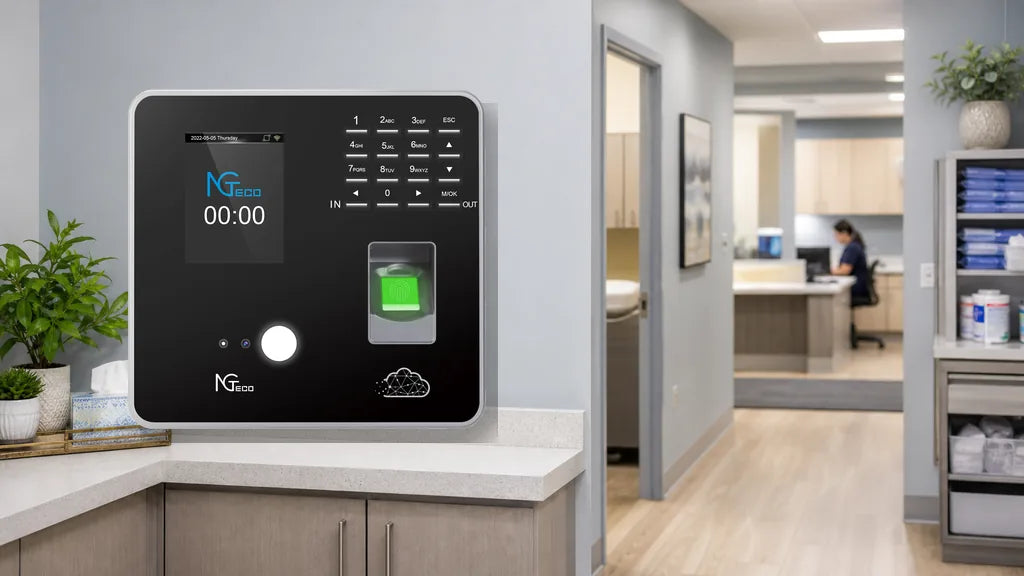
Wondering about time clock WiFi distance can save you a lot of frustration later. Walls, floors, and open space all change how strong a WiFi signal reaches your clock, and that affects setup and daily syncing. Here's a fast overview to start:
- Keep the time clock on the same floor as your router when possible
- Fewer walls between them means a steadier connection
- Weak signal often shows up as slow syncing or dropped connections
- Small fixes like repositioning or adding a WiFi extender usually solve it
- Offline models are available if WiFi coverage is not an option

Why Does WiFi Distance Affect Your Time Clock?
A time clock relies on a steady WiFi connection to send punch data where it needs to go. When the clock sits too far from the router, or has several walls, metal shelving, or a thick door standing between them, the signal weakens. And a weak signal can lead to a clock that won't connect to WiFi at all, or one that connects but struggles to keep up with syncing. Concrete walls, metal cabinets, and even large appliances tend to block or bounce WiFi signals harder than drywall or glass. So distance alone is not the only factor—what sits between the clock and the router matters equally.
How Close Does Your Time Clock Need to Be to the Router?
There is no single number that works for every office or job site, because every building is different. But a few practical rules hold up almost everywhere.
Same Floor, Same Zone
Try to place your time clock on the same floor as the router. WiFi signals lose strength quickly when they have to travel through floors and ceilings, so a clock two floors away from the router is far more likely to struggle than one on the same level.
Line of Sight Helps
If you can stand at the clock's location and see the router, or come close to it, that is usually a good sign. A clear path between the two means fewer obstacles are absorbing the signal along the way.
Every Wall Adds Up
Each wall between the clock and the router chips away at signal strength. One or two interior walls are usually fine. Add a third or fourth, especially if they are concrete, brick, or lined with metal, and connection problems become far more common.
Here's a simple way to think about placement:
|
Setup |
Likely Result |
|
Same room as router |
Strong, stable connection |
|
Same floor, 1-2 walls away |
Generally reliable |
|
Different floor or 3+ walls |
Higher risk of weak signal |
|
Far corner, metal shelving nearby |
Frequent connection issues |
The closer and clearer the path, the more consistent your time clock will be.
What Are the Signs Your Time Clock Is Too Far From the Router?
Check for these common symptoms of a weak WiFi connection first:
- Syncing takes noticeably longer than it should
- The clock drops offline every so often without warning
- You see a message saying it won't connect to WiFi
- Punches show up late instead of updating in real time
- The clock connects fine some days and struggles on others
Any of these can point to distance or interference rather than a hardware problem. If your clock worked well until it was moved to a new spot, location is a good place to start looking.

How Do You Fix a Weak WiFi Connection?
Most connection issues can be resolved without buying new equipment. Here are the fixes that tend to work first.
Move the Clock or the Router
If you can shift either one closer to the other, even by a few feet, it often makes a noticeable difference. Sometimes clearing a nearby obstruction, like a filing cabinet or a metal locker, helps as much as changing the distance itself.
Cut Down on Walls Between Them
Where possible, choose a spot with fewer walls in the path. A hallway location often performs better than a closed-off back office, even if the straight-line distance is similar.
Add a WiFi Extender
A WiFi extender picks up the signal from your router and rebroadcasts it further into your space. This is a straightforward option for larger offices, warehouses, or buildings with thick walls where moving the router isn't practical.
Choose a Time Clock Built for Tougher Signal Conditions
Some time clocks handle signal challenges better than others. NGTeco's TC2 and TC3 support dual-band WiFi, which gives you the flexibility to connect on 5GHz for speed in open areas or 2.4GHz for better range through walls. That flexibility can help you get a steadier connection in spots where a single-band clock might struggle. Instead of guessing at placement, you get a bit more room to work with when your layout isn't ideal.
What If WiFi Won't Reach Where You Need It?
Some spots are simply too far from any router, or too surrounded by interference, for WiFi to reach reliably. Basements, detached garages, and far corners of larger buildings fall into this category often.
For those situations, an offline time clock is worth considering. NGTeco's AS10 doesn't rely on WiFi at all. Employees can clock in and out using fingerprint or password entry, and you can pull the data straight from the clock using a USB connection. It gives you a dependable way to track time in spots where a wireless connection was never going to work well in the first place.
How Does an Offline Time Clock Work?
An offline time clock skips the network entirely. Instead of sending punch data over WiFi, it stores every clock-in and clock-out directly on the device itself. When you need the data, you connect a USB drive to the clock, pull the records, and load them onto your computer. There is no router to reach, no signal to lose, and no waiting on a connection that might drop.
This setup fits places where WiFi is unreliable or simply not available, like a detached storage building, a basement, or a job site that changes location. Employees still clock in with a fingerprint or password, so the process feels as fast and familiar as it would with a connected clock. The only difference is how the data gets from the clock to you.
Here's how the two setups compare:
|
WiFi Time Clock |
Offline Time Clock |
|
|
How punches are recorded |
Sent over WiFi to your account |
Stored on the device |
|
How you get the data |
Syncs automatically |
Pulled manually with a USB drive |
|
Affected by router distance |
Yes |
No |
|
Best fit |
Offices, storefronts, spaces with steady WiFi |
Basements, detached buildings, spots without reliable WiFi |
|
Setup effort |
Connect once to your network |
No network setup needed |
Neither option is better across the board. A WiFi clock like the TC2 or TC3 keeps everything updated in real time, which works well when your space has decent signal. An offline clock like the AS10 trades that real-time sync for unbeatable reliability in spots where WiFi was never going to hold up anyway.
Ready to Fix Your Time Clock Connection?
Distance and obstacles both shape how well your time clock connects to WiFi. Moving the clock closer, clearing walls, or adding an extender solves most problems. If your space still fights you on signal, a dual-band clock like the TC2 or TC3 gives you more flexibility, and the AS10 works entirely offline when WiFi isn't an option at all.
FAQs
Q1: Why won't my time clock connect to WiFi?
This usually comes down to distance, walls, or interference between the clock and the router. Weak signal strength at the clock's location is the most common cause, especially in spots with concrete walls or metal fixtures nearby.
Q2: How far can a time clock be from the router?
No fixed distance works everywhere, because walls, floors, and materials all affect signal strength differently. As a general rule, staying on the same floor with a clear path and minimal walls gives you the best chance of a stable connection.
Q3: Can I use a WiFi extender with a time clock?
Yes. A WiFi extender rebroadcasts your router's signal further into your space, which can help a time clock in a far corner or a room with thick walls connect more reliably.
Q4: What if there's no WiFi where I want to put it?
An offline time clock, like the AS10, doesn't need WiFi to work. It records punches locally and lets you export the data through a USB connection, so location is never a limiting factor.


Share:
Does a Time Clock Need a Battery? (When Backup Power Matters)
Can a Time Clock Work Without an App?