
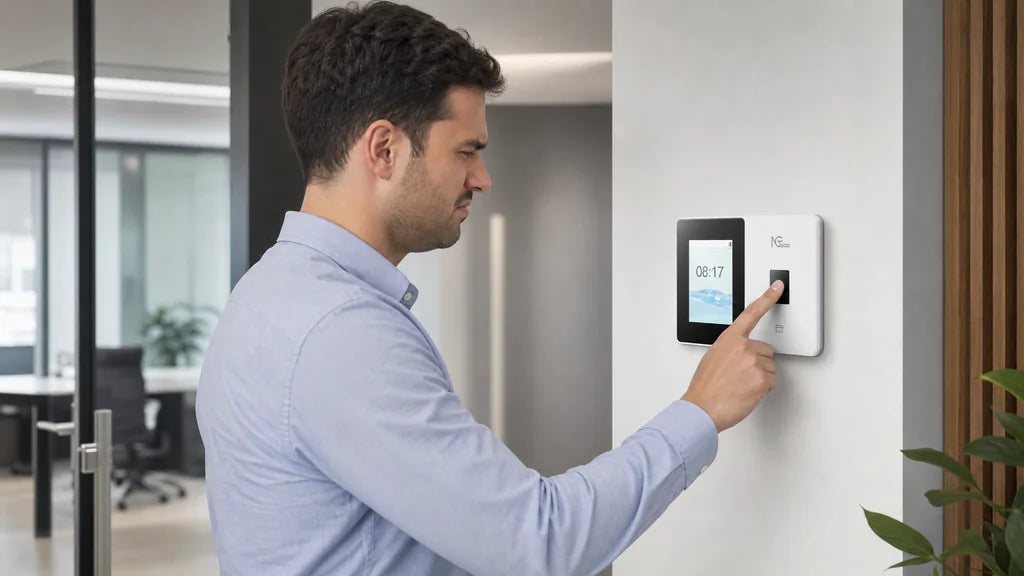
A fingerprint time clock usually rejects a scan because of finger placement, skin condition, a dirty sensor, or a weak enrollment record, not because the device is broken. Most fingerprint scanner not recognizing employee problems clear up in minutes once you work through those causes in order. NGTeco models like the TC1 and TC3 also offer password, face, or identification (ID) card backups so one bad scan never blocks a clock-in.

Check Finger Position and Contact First
The fastest fix for a rejected scan is also the most overlooked one: how the finger meets the sensor. Most single scan failures on a clock-in machine with fingerprints come from placement, not equipment.
Common Placement Mistakes
- Too much pressure, which flattens the ridges the sensor needs to read
- An angled finger instead of one laid flat
- Only the fingertip touching, instead of the full pad
- A finger that slides or lifts during the scan
- A glove or a wet finger blocking full contact
How to Scan a Finger Correctly
- Center the pad of the finger flat on the sensor glass
- Apply light, even pressure, not a hard press
- Hold still for one to two seconds
- Wait for the beep or light confirming a successful read
Employees who fix placement alone usually clock in successfully on the very next try.

Inspect the Finger for Dryness, Moisture, Dirt, or Damage
If placement already looks right, the next place to check is the finger itself. A finger scan time clock reads ridge patterns, and anything that flattens or hides those ridges causes a rejection.
Signs the Skin Is Causing the Problem
- The same employee fails repeatedly while coworkers scan fine on the same device
- Failures cluster after handwashing, hand sanitizer, or cold weather
- The finger looks visibly dry, cracked, sweaty, or dirty
Fast Fixes by Skin Condition
| Skin Condition | Quick Fix | Expected Result |
|---|---|---|
| Dry or cracked skin | Rub in a small amount of lotion, then wipe the finger dry before scanning | Ridges read clearly within one or two tries |
| Sweaty or damp skin | Wipe the finger on a dry cloth right before scanning | Sensor gets a clean contact instead of a smeared read |
| Dirt, grease, or ink | Wash and dry hands before the shift starts | Sensor reads the ridge pattern instead of debris |
| Fresh cuts, blisters, or heavy calluses | Enroll a backup finger or use another verification method | Employee clocks in without waiting for the injury to heal |
Clean and Inspect the Sensor
When several employees start getting rejected around the same time, the sensor is a more likely cause than any one person’s finger. A buildup of oil, dust, or lotion residue on the glass blocks a clean read for everyone.
How to Clean a Fingerprint Time Clock Sensor
- Turn off or wake the device before cleaning
- Lightly dampen a microfiber cloth with water or isopropyl alcohol
- Wipe the sensor gently in a circular motion
- Dry the surface with a clean, dry cloth
- Skip paper towels and harsh cleaners, since both can scratch the sensor glass
Cleaning Frequency by Environment
| Environment | Recommended Cleaning Frequency |
|---|---|
| Office or retail | Once a week |
| Light industrial | Every two to three days |
| Warehouse or manufacturing floor | Daily, or at each shift change |
A cleaner sensor fixes group-wide rejections faster than re-enrolling every affected employee one at a time.
Re-Enroll the Finger With Better Samples
If placement, skin, and the sensor all check out and one employee still fails, the original enrollment scan is probably the real problem. A rushed or partial enrollment scan gives the system too little detail to match against later.
When to Re-Enroll a Finger
- The employee never scanned reliably, even on day one
- Recognition used to work and has gotten worse over weeks, not days
- The original enrollment happened while the finger had a cut, callus, or injury
How to Capture a Better Enrollment Scan
- Clean and dry the finger before enrolling
- Center the full pad on the sensor for each sample
- Capture the enrollment at a slightly different angle each time, if the device allows more than one sample
- Enroll a second finger as a built-in backup
Confirm the Employee Profile and Device Assignment
A finger that scans cleanly can still get rejected if the profile behind it is not set up correctly. This is a software check, not a hardware one, so it takes a few minutes in the admin panel rather than at the clock itself.
Check for Duplicate or Conflicting Profiles
Search the employee list for a second profile under a similar name or an old employee ID. A duplicate profile can hold an enrollment record that conflicts with the active one, which causes intermittent rejections that look random.

Confirm the Employee Is Assigned to the Right Device
Some setups register a fingerprint to one specific terminal or location rather than the whole system. Check that the employee’s profile is active and assigned to the exact device they are trying to use, especially after a recent transfer between sites.
Use an Approved Backup Method When Recognition Still Fails
Even after working through every cause above, a scan will occasionally fail, and the employee still needs to clock in on time. Set up an approved backup method for every employee before problems come up, not as an improvised workaround in the moment.
Setting Up a Backup Method in Advance
Assign each employee a personal identification number (PIN), an ID card, or a face profile alongside their fingerprint. This keeps the clock-in process moving on days when biometric recognition struggles, without creating a gap in the attendance record. The employee clocks in on time, and the punch reads no differently than a normal fingerprint scan.
Backup Verification Options by Model
| Model | Backup Methods Beyond Fingerprint | Good Fit For |
|---|---|---|
| TC1 | Password, face, ID card | Teams that want the fullest set of backup verification options |
| TC3 | Password, face, ID card | Sites that also want a touch screen and multi-language switching |
| TC2 | ID card | Teams that mainly need a card backup, not a face option |
Escalate Persistent Failures With Specific Evidence
For an employee who keeps failing after every fix above, the next step is a documented escalation instead of another attempt at the sensor. Specific evidence gets a faster, more accurate fix than a general complaint that the clock “does not work.”
What to Document Before You Escalate
- The date, time, and device used for each failed attempt
- Any error message or code shown on the screen
- Which finger was used and whether it was clean and dry
- Conditions at the time, such as cold hands or recent handwashing
When to Switch Verification Methods for One Employee
Some employees, especially those doing manual labor, develop worn or damaged fingerprints that never scan reliably no matter how many times they re-enroll. Switch that employee’s primary method to face or ID card instead of continuing to troubleshoot the same finger. On a multi-method device like the TC1, TC3, or NG-TC7, this is a setting change with no new hardware needed. A dedicated model like the NG-TC5 works well for a team that wants face recognition as the main method from the start.
Start Fixing Fingerprint Recognition Failures Today
Work through the causes in order: placement, skin condition, sensor cleanliness, enrollment quality, and profile setup. Most rejections trace back to one of these five and clear up without a service call. For the employees who still struggle, a backup method or a switch to face or ID card recognition, available on models like the TC1 and TC3, keeps every shift starting on time.
Common Questions About Fingerprint Time Clocks
Q1: Can cold weather affect fingerprint scanning accuracy?
Yes. Cold hands lose blood flow and get drier, which flattens the ridges a sensor needs to read. A few seconds of rubbing the hands together before scanning usually solves this in cold entryways or outdoor sites.
Q2: How many failed scans typically occur before a time clock locks a profile?
This varies by device and admin settings, but many systems flag or temporarily lock a profile after three to five consecutive failed attempts as a security measure. Check the device’s admin settings to confirm the exact threshold and how to unlock a profile once it happens.
Q3: Do fingerprint time clocks store an actual image of an employee’s fingerprint?
No. Most systems, including NGTeco devices, convert the scan into a mathematical template rather than storing a fingerprint image, and that template cannot be reversed back into a picture of the finger. This distinction matters for state biometric privacy laws, which often apply to fingerprint data regardless of the storage format.
Q4: Should new employees be enrolled with more than one finger?
Yes, enrolling two fingers is a low-effort way to prevent single-point failures. If one finger develops a cut, callus, or skin condition later, the second enrolled finger keeps working without an emergency re-enrollment.

Q5: Can a supervisor manually clock in an employee when every backup method fails?
Most cloud-connected systems allow a manager to add or correct a punch from the admin panel after the fact. This should be treated as a rare exception logged with a reason, since routine manual entries defeat the purpose of automated time tracking.


Share:
Missed Punch Policy: A Fair Process for Correcting Time Records
Where to Place a Facial Recognition Time Clock for Better Lighting and Faster Punches